
Can ChatGPT post to Instagram for your store? A safe setup
ChatGPT cannot post to Instagram on its own, but it can through a connector. Here is how a store owner lets an AI assistant schedule posts with approval first.
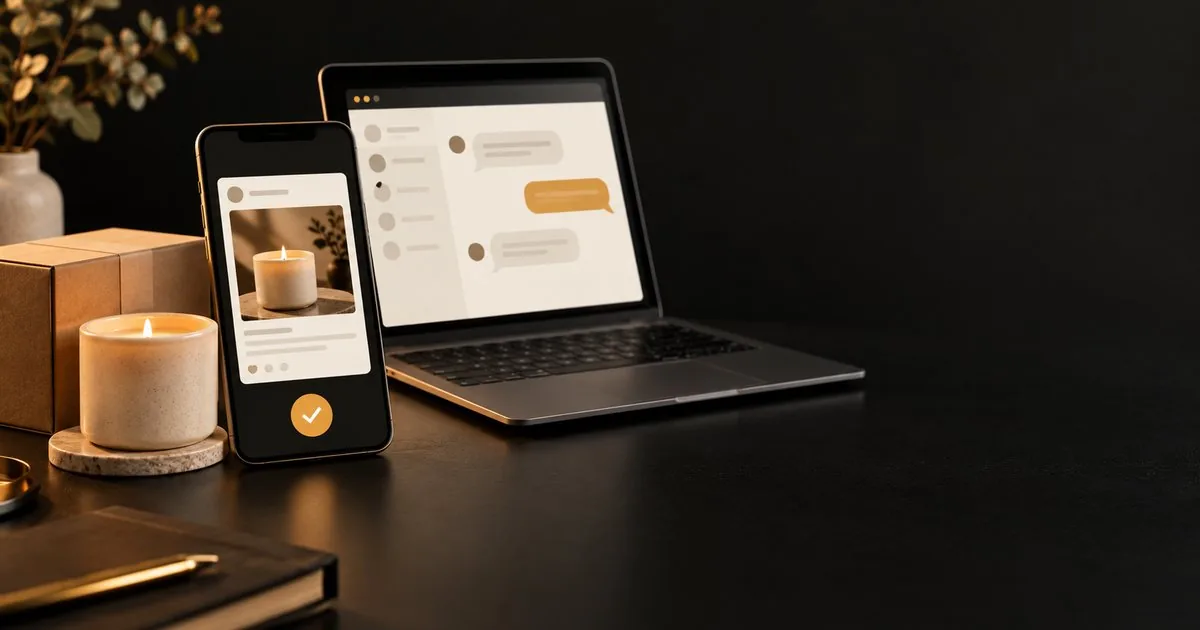
ChatGPT cannot publish to your Instagram account on its own, but it can once you connect it to a publishing tool you sign in to. The safe version of that setup has three parts: the assistant never holds your passwords, it can only do what you allowed, and nothing goes live until you approve it. This guide shows how a store owner can set that up and what to keep for yourself.
Updated 2026-11-07: expanded with a section on who controls a connector, a table of what can go wrong, a preview checklist and a one-week trial.
Can ChatGPT post to Instagram by itself?
No. ChatGPT writes captions and ideas, but it has no link to your Instagram account unless you add one. OpenAI explains that custom MCP servers connect your ChatGPT workspace to external applications, and those servers are third-party services that OpenAI does not develop or verify.
In plain terms, a connector is a bridge between the chat and a tool such as a social publishing workspace. ChatGPT asks the tool to schedule a post, and the tool does the publishing through Instagram's official route. Instagram's content publishing guide covers publishing on Instagram professional accounts, so your store's account needs to be a professional one.
Who controls a connector, and why does that matter?
The service behind the connector controls what the assistant can do, not ChatGPT. When you add a connector, you are trusting that service with whatever its tools can reach.
OpenAI's MCP documentation says custom servers are not verified by OpenAI. It advises connecting only to servers you know and trust, and it recommends keeping approval turned on for tools that can change data. Publishing a post is a change to a public account, so it falls squarely in that group.
The protocol behind connectors, the Model Context Protocol, makes the same point. Its specification says there should always be a human in the loop who can deny a tool call, and that applications should ask for confirmation before sensitive operations. Treat those as the minimum, and look for a publishing tool that builds in a confirmation of its own instead of relying on the chat window alone.
Before you connect anything, ask three questions:
- Who runs it? A tool from a company with a public address, documentation and a way to reach support is easier to trust than an unnamed link.
- How does it sign in? It should ask you to approve access on a consent page. A tool that asks for your Instagram password is not using the official route.
- What can it do? Read the permissions on the consent page. Posting and scheduling should be separate from anything that touches billing or other brands.
How does a connected assistant publish for your store?
It follows the same steps a person would, only faster. With Creavily connected, an assistant can look up your brand, check that the Instagram account is ready, draft the post from your product images, show you a preview and, once you agree, schedule it.
The pieces that make this safe are built in:
- Sign-in without passwords. You approve access on a consent page, so the assistant never sees your Instagram or Creavily password.
- A saved destination. The assistant publishes to the accounts in your brand's Publishing Setup, which is the saved set of accounts and posting defaults you chose, so it cannot wander onto another brand's account.
- A record of what happened. Publishing Activity shows what was scheduled, what went live and what needs attention.
You can see the full path from draft to delivery on the publishing workflow page.
Will the assistant publish without asking me?
Not when the tool is set up properly. OpenAI's help article says that for write or modify actions ChatGPT may ask for confirmation, depending on the app's permissions and the action's impact, and some risky actions may be blocked. The help article on connecting custom MCP servers describes this in detail.
Creavily adds its own check on top. Reading and previewing are free, but every change needs an explicit confirmation, and scheduling a post is a separate step from the post being sent to Instagram. The result is read back afterwards, so you see whether it really went live.
Do not treat this as a reason to stop looking. A confirmation only helps if you read what you are confirming, so the next sections cover what to check.
What can go wrong, and how do you catch it?
Most problems are small and visible in the preview, if you know where to look. The table lists the ones a store runs into first.
| What can go wrong | How you catch it |
|---|---|
| The caption makes a promise you did not approve, such as a price, a discount or a delivery date | Read the caption against your own source of truth before you confirm |
| The post goes to the wrong account or brand | Check the destination shown in the preview against the brand you meant |
| The image is the wrong file or format | Look at the attached image in the preview; Meta's publishing guide says JPEG is the only supported image format for API publishing |
| The same post is created twice after a retry | Look in Publishing Activity before asking again; a well-built tool uses an idempotency key so a repeated request returns the first result |
| The connection to Instagram stops working | Check Social Accounts and Publishing Activity for a problem with the connection; Meta's long-lived Instagram tokens last 60 days, so a connection can expire without warning |
| The post is scheduled for a time you did not mean | Read the date and time in the confirmation, not only in the chat |
The token detail comes from Meta's documentation of Instagram business login, which says long-lived Instagram tokens last 60 days and can be refreshed. A tool can handle refreshing for you, but it is worth knowing that a connection is not permanent.
Which posts should you still check yourself?
Check any post that makes a promise. Prices, discounts, stock levels, shipping claims and anything a customer could hold you to deserve a human look before they go live, however good the draft is.
Replies to customers also stay with a person. An assistant can draft a reply in Creavily's Inbox, but sending it is a separate, confirmed step, because a public reply cannot be undone.
It helps to give the assistant a short fact sheet and tell it to use only that. Paste the product name, the real price, the materials and the shipping promise you stand behind, and ask it to flag anything it is unsure about. OpenAI's help center says ChatGPT can sound confident while being wrong and advises treating it as a first draft, not a final source. A fact sheet turns that advice into a habit.
What should you look at in a preview?
Look at five things, in this order: the destination, the image, the caption, the date and time, and the link. A preview is the last place a mistake is free to fix.
- Destination. Is it the account and brand you meant?
- Image. Is it the right product, and does it look right when cropped?
- Caption. Does every claim match your store today, and does it sound like your brand?
- Date and time. Is it the day you meant, in the time zone you meant?
- Link. Does the link go to the right product page, and does that page work?
If any of these is wrong, ask the assistant to change it and preview again. Do not confirm a post you plan to fix later.
How do you set it up safely for your store?
- Make sure your Instagram account is a professional account and connect it under Social Accounts.
- Create a Publishing Setup for the brand with the accounts and posting times you want.
- Connect your AI assistant through the sign-in page and read the permissions it asks for.
- Ask it for a preview of one post first and check the caption, image and time.
- Approve it, then open Publishing Activity to confirm it went out as planned.
- Disconnect the assistant whenever you want to stop it; disconnecting ends its access straight away.
Plans differ in how many brands and accounts you can connect, and in whether they include API and assistant access. The pricing page shows the current options.
How do you try it for a week without risking your account?
Start small and keep a person in the loop for the whole week. The goal is to learn how the assistant behaves with your products before you rely on it.
- Day 1. Connect the account and schedule one simple post, such as a product photo with a short caption. Confirm it went out as planned.
- Days 2 and 3. Ask for a draft of two posts from your fact sheet. Compare each claim with your store and correct anything that drifted.
- Days 4 and 5. Let it propose a few posts for the following week. Schedule only the ones you would have written yourself.
- Day 6. Ask for reply drafts to a few real comments. Edit them, then send them yourself.
- Day 7. Review Publishing Activity. Note what you corrected most often and add it to the fact sheet or to your instructions.
If the assistant keeps getting one thing wrong, give it a rule for that thing rather than correcting it each time. If it keeps getting several things wrong, keep it to drafting and schedule the posts yourself.
Key takeaways
- ChatGPT cannot post to Instagram alone; it needs a connector to a publishing tool.
- The service behind a connector decides what the assistant can do, so connect only to tools you trust and keep their approval step on.
- Connect with a sign-in, not a password, so the assistant never holds your credentials.
- Keep an approval step before anything is published, and check posts that mention prices or promises.
- Read the destination, image, caption, time and link in every preview, and use a one-week trial before you rely on it.
FAQ
Can ChatGPT schedule Instagram posts for my shop?
Yes, through a connector to a publishing tool. ChatGPT drafts the post and asks the tool to schedule it, and you approve the preview first.
Does the assistant need my Instagram password?
No. You approve access on a consent page, and the assistant receives limited permission instead of your password.
Can I turn the connection off?
Yes. Disconnect it in Creavily and its access ends straight away; you can reconnect later.
Is it safe to let AI answer customer comments?
Use it to draft replies and keep the sending step with a person. A public reply cannot be undone, so a quick look is worth it.
Why does a connection to Instagram sometimes stop working?
Access tokens expire. Meta documents that long-lived Instagram tokens last 60 days, so a connection may need to be refreshed or reconnected. Check Social Accounts if scheduled posts stop going out.