
CreavilyBrand publishing
Asset management
Turn creative production into a searchable publishing library.
Selected uploads and Asset Manager media keep their brand context as you check destination requirements before preparing a post.
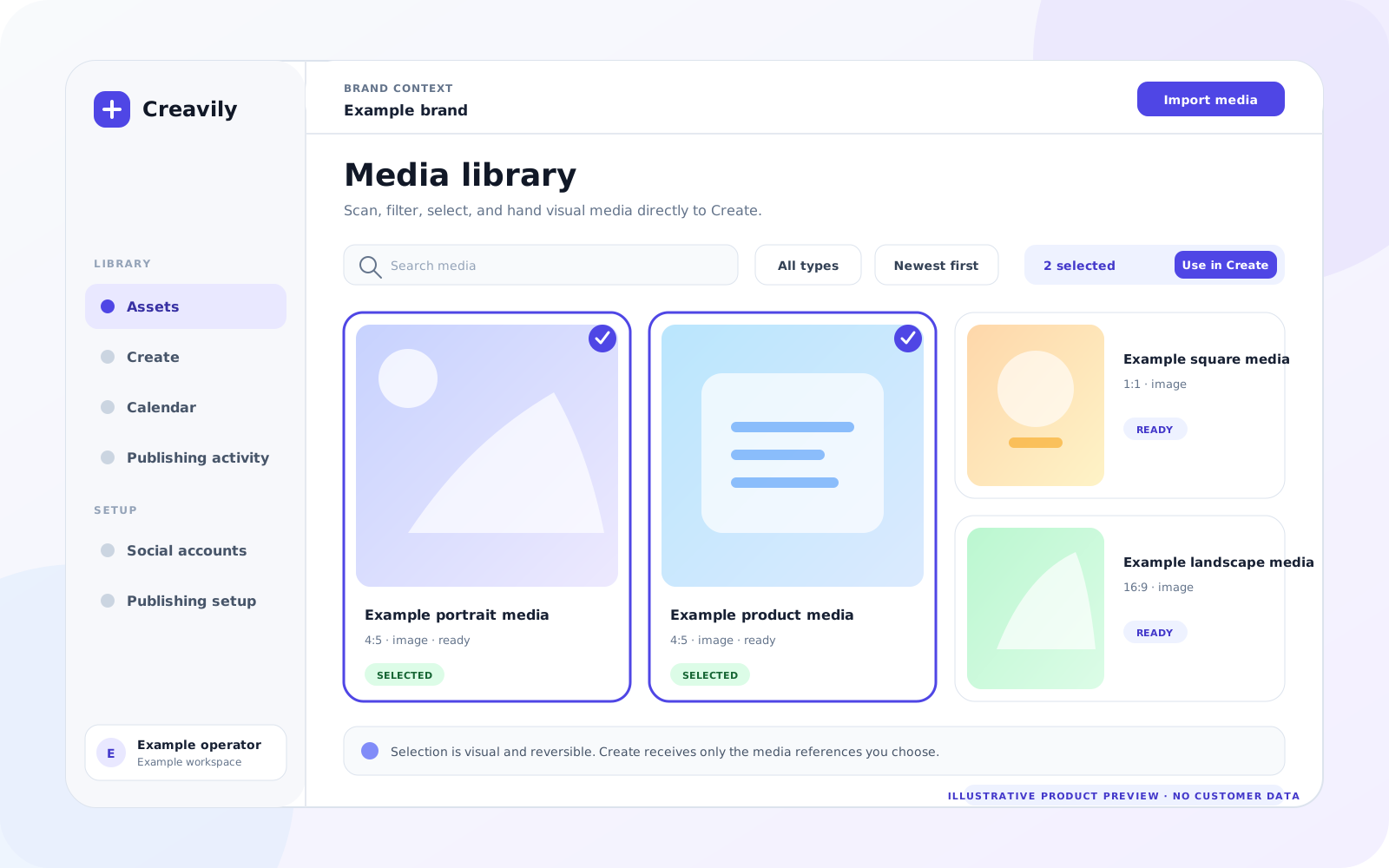
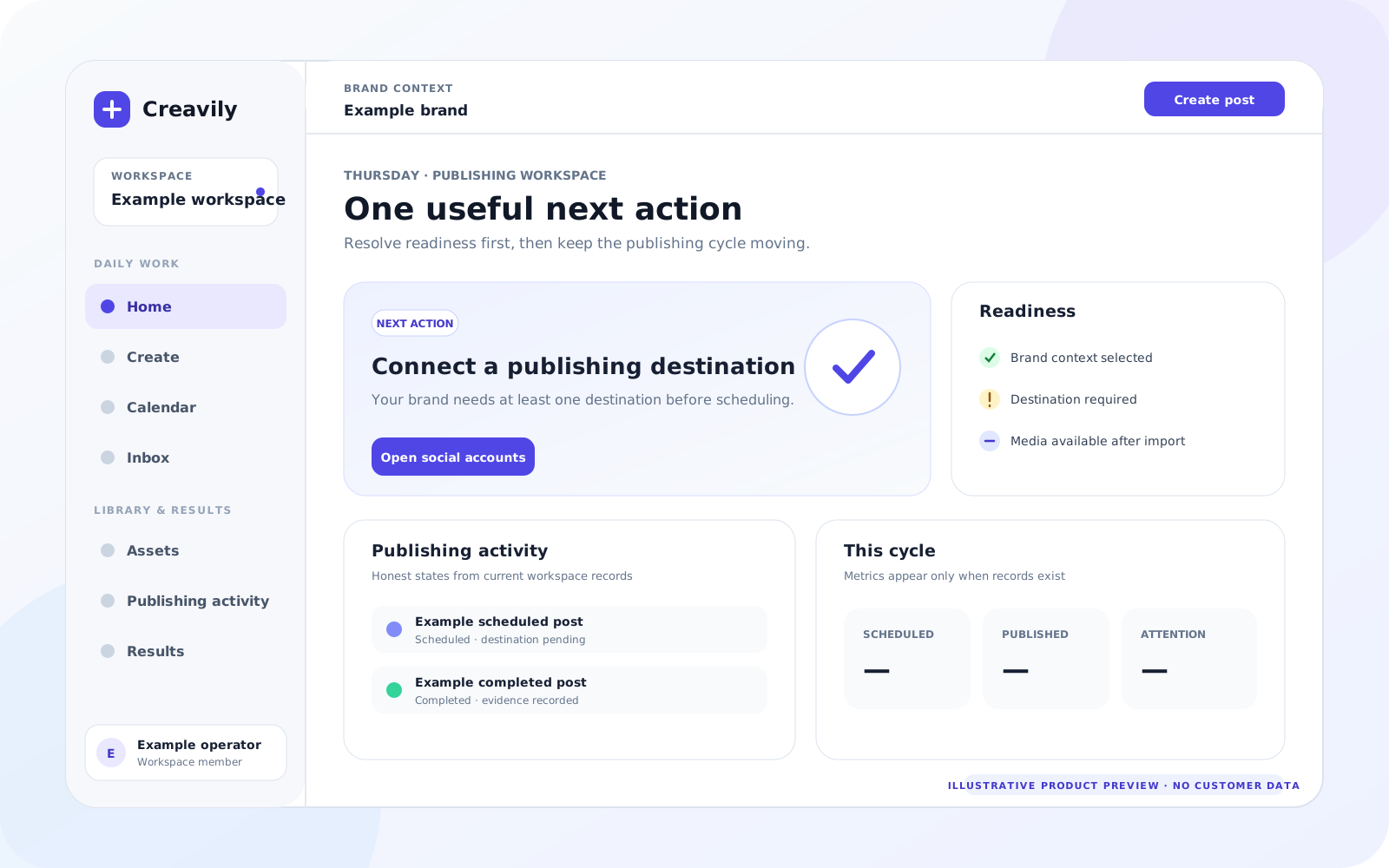
Media library
Visual context stays attached to the work.
Media details, crop checks, destination readiness, and publishing history should stay beside the asset instead of in a separate spreadsheet.


Bring in generated media, local files, media links, and agent-assisted publishing work.
Check media type, caption, account context and destination requirements.
Find and inspect library media within the selected brand and supported filters.
Publishing model
Asset to post path
A batch of product images arrives from Asset Manager. Creavily stores each item, preserves content history, tags product context, and shows which variants are safe for each channel.
Media layerGenerated assets need durable references before they can become posts.Asset Manager and creative agents can produce a lot of media at once. The publishing layer needs to receive files, import URLs, prevent duplicates, attach product context, and keep every asset easy to find.
Generated assets need durable references before they can become posts.
Asset Manager and creative agents can produce a lot of media at once. The publishing layer needs to receive files, import URLs, prevent duplicates, attach product context, and keep every asset easy to find.
Media transfer scenarioA batch of product images arrives from Asset Manager. Creavily stores each item, preserves content history, tags product context, and shows which variants are safe for each channel.
Upload
Multiple intake modesLocal files, generated images, imported URLs, and agent-submitted media can enter one media library.
Find
Search by publishing contextTeams need filters for product, ratio, platform, readiness, campaign, and review progress.
Check
Readiness is explicitCrop fit, size, duration, caption, and platform rules should be visible before scheduling.
Review
Context stays visibleMedia and caption context stay visible during publishing preparation; collaborative review is separate work.
Product detail
Media readiness checklist
A good asset page should help the team know why a piece of media is ready, blocked, or still incomplete.
OriginUpload or import URLStore enough history to resolve broken media later.
Product contextBrand, product, ratioRequired before fair scheduling and readiness checks.
Review progressDraft, checked, scheduledReview progress must be visible before live publishing.
Next step
Bring this publishing path into your Creavily workspace.
Use Google login for the human workspace, then connect channels and agent routines when the account is ready.
Select the right media without losing its brand context
Use the library to inspect publishing media, then carry the exact selected item into Create. This is a publishing media workflow, not a promise of a complete digital-asset approval system.
How to use it
- Choose the owning brand before uploading or selecting media. Check its type and intended destination.
- Keep the selected media identity when opening Create; changing workspace or brand must not reuse an out-of-scope selection.
- Read platform-specific readiness feedback before previewing and confirming the post.
Know the limits
- Private media is accessed through authorized routes; a permanent public object URL is not the source of truth.
- A successful upload does not prove every platform accepts the media format. Cross-device drafts and full team review histories are not implied by having a library.
Can uploaded files be used immediately?
They can be selected after successful upload and validation, but publishing still requires compatible media, the correct account, preview and confirmation.
Does importing publish an asset?
No. Selecting or importing media is separate from creating and executing a publishing job.